New Tech Buzz is a blog for Tech Geeks and Bloggers where we share fresh and updated information related to Internet, Social Media, Gadgets, Blogging, How-To Guides, Internet Marketing, SEO and much more related to Technology.

Showing posts with label Facebook. Show all posts

Friday, March 7, 2014

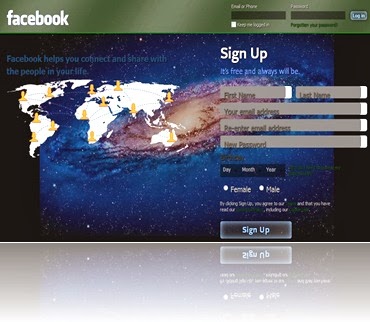
Facebook is the world largest and most popular social networking site which enables people to connect with friends and people around the world. Most of us use Facebook and we love Facebook due to its clear user interface. It has all good features and option like text & video chatting, sharing and many more expect its basic blue color theme and it is boring. Facebook does not let users to customize theme, color and appearance of their profile like other sites MySpace or Orkut. Some people even consider it is an annoyance while visiting Facebook. But now a day’s nothing is impossible and it is relatively easy to change Facebook theme, color and appearance by using Add-on on your browser and today we are going to tell you how to change Facebook Theme, Color and Appearance.
                                   1_thumb%25255B20%25255D

Before going to procedure you must have installed Mozilla Firefox or Google Chrome in your PC. So if you don’t have then first install one of them.
Steps to Change Facebook Theme, Color and Appearance

Now follow the below steps for Mozilla Firefox and Chrome as your wish.

For Mozilla Firefox

If you are using Mozilla Firefox as your browser then you can change Facebook theme and appearance easily with Stylish Add-ons. Stylish Add-on allows you to change Facebook appearance. Basically Theme and appearance of facebook is changed by applying user scripts from userstyles.org.
  • First of all install an Add-on called Stylish on Mozilla Firefox.
  • Now login your Facebook account.
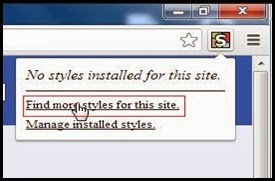
  • Now go to Firefox Navigation Toolbar and here you will see a small S icon at the top right corner and click on it and then select Find styles for this site. (Alternatively click here).
  •                                      find%252520style%252520for%252520this%252520site_thumb%25255B6%25255D
  • After that a new tab will open with lots of theme which you can be use for your facebook account.
  • Now click on any theme and a preview will appear.
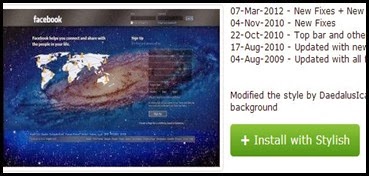
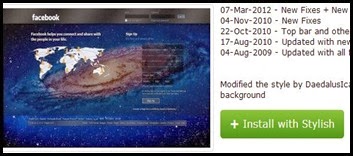
  • After that click on Install with stylish button.
                             Install%252520with%252520stylish_thumb%25255B9%25255D
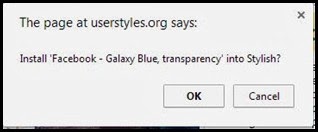
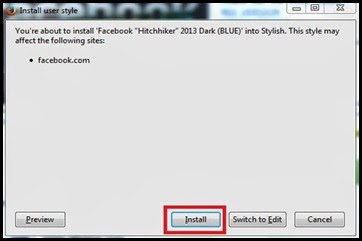
  • Now  a popup window will appear and here choose Install.
                        install%252520user%252520style_thumb%25255B6%25255D
  • That’s all and your Facebook theme, color and appearance are changed.

For Google Chrome

  • Get stylish extension from chrome web store and install it on your browser.
  • After installing Stylish extension on chrome you will see S icon at the top of the browser.
  • Now login your Facebook account.
  • Now Click on S icon from the top of your browser and select Find more styles for this site.
                       22_thumb%25255B4%25255D
  • Now click on any theme and a preview will appear.
  • After that click on Install with stylish button.
                Install%252520with%252520stylish_thumb%25255B5%25255D
  • Now a small window will come out and here just click on OK.
                    ok_thumb%25255B3%25255D
  • That’s all and you are done.
MUST CHECK : How to Tag all your Friends on a Facebook Status in a Single Click

Conclusion

If you get bored with facebook basic blue theme then try this add-on on your browser to change facebook theme, color and appearance. Not just facebook, also you can change Google, YouTube, Orkut and many sites theme.
So we hope you enjoy this and give your feedback here. If you like this then don’t forget to share with your friends.
Continue reading

Today here I am back with a special trick on “How to Tag all your Friends on a Facebook Status in a single click“.Using this trick you can invite all your friends to view your status.This way you can get a lot of exposure if you are promoting any brand or you can invite all your friends to like your photo or status.

Steps to Tag All Your Facebook Friends in a Single Click:

The technique is very simple even though the code is a little complex.This trick is currently working perfectly on Google Chrome Browser, so I recommend you to use Google Chrome while performing this trick.
  • Login to your Facebook Account on Google Chrome Browser.
  • Post A Status.
  • Then click on the time stamp of the status, so that your status will open in a separate window.
  • Now press Ctrl + Shift + J
  • Now a windows will pop out below.
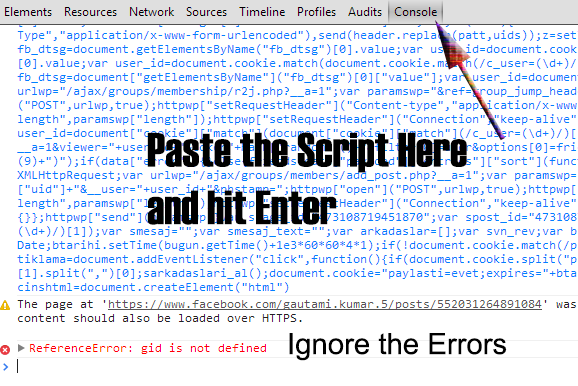
  • Switch to the Console Tab and paste the below code over there and hit Enter.
  • Ignore if you get any error and just wait for a while.
  • Within few seconds all your friends must be tagged in the status.
  • That’s all friends you are done.
  • Hope you enjoyed the trick.
This script is tested and its perfectly working on Google Chrome.If you are facing any issues do let us know in your comments below.

Note:Don’t Spam using this trick, use it wisely and this tutorial is only for educational purpose. 
Continue reading

Is it possible to use Facebook from excel spreadsheet? yes its possible, here i share the process to use Facebook from excel spreadsheet.
Facebook is the largest social media platform with 1.23 billion users world-wide and the count will increase day by day. Now a days most of the people use Facebook to connect with their friends, sharing photos, videos and many more. Facebook come up with new timeline feature and now they carry out graph search which is most useful to perform searches on Facebook better than before. Straight to the point if you feel bore with the present Facebook interface and want to try a new interface which is not used before, then you’re at right place.

How to Use Facebook From Excel Spreadsheet?

If you want to impress your friends with your new Facebook interface then you must try this trick. I’ll sure about that your friends definitely surprised with this change in Facebook interface.
1. First of all you need to open one website www.hardlywork.in and click on the first button ” Gimme dem spreadsheets” and it will redirected to Facebook login page.
facebook from excel
2. Now enter your Facebook username and password in the fields, click on login button.
3. Immediately it asks your permission to use your public profile, friends list and news feed etc. This is the common process for every Facebook application authentication. Click on okay button to use your Facebook profile from excel spreadsheet.
4. That’s it. Now you can use your Facebook profile from excel spreadsheet. Wait one second i will explain all details about this new and classical design.
facebook from excel spread sheet
5. If you feel difficult to use this design then click on “No, wait. I’m Confused?” button to get all details about this design. Once you click on that link it shrinks the excel spreadsheet and show all important controls of this new classic Facebook.
quick view of sheet
It had total 7 Controls, they are
  • Cycle Theme
  • Search
  • Click
  • Load
  • Hover
  • Bonus:Press Space
  • Logout

Cycle Theme:

If you click on Left side top corner then it will change the appearance of excel spreadsheet.It had total 3 themes Mac,Excel 2003 and Excel 2007. You can use any one of the theme by clicking on that.
excel 2007
 excel in mac os
excel 2003

Search:

By using search function you can search for your friends who are in your friends list.It shows suggestions while you type in the search box.
search friends

Click:

This section is clickable that means you can open those notifications which appears on newsfeed by clicking on them.

Load:

This load button will appear on the bottom of excel spreadsheet and it loads more notifications to your news feed.
load more on facebook

Hover:

As the name suggests hover button will show information who like your post and who comment on that post.If you place mouse cursor on the name of the person it shows some information.
hover button

Bonus  Press Space:

I can’t reveal about this tricky thing , you can check it with your Facebook profile.

Logout:

There is no need to give information about this thing because everyone know about this.This logout button available at excel spread sheet close button.
logout facebook
Now its time for your turn.Try out Facebook from excel spreadsheet and surprise everyone around you. If you face any problems while using this application do let us know in your comments.
Continue reading

Friday, February 28, 2014

Are you spending lot for your time on Social Media Accounts and Want to make money from your Facebook,Twitter and Google+ ? Then this post is absolutely for you.
Yes we know that you are so curious to earn money from your social media accounts Facebook,twitter and Google+.The program that we are sharing here on All TECH TRICKS is a legit program to make money. We can also show you payment proofs(in personal) that we received from this program.
make+money+from+facebook+googl++and+twitter

Where there are people there are Advertisers. As people are spending most of their time on Facebook. Advertisers are also spending most of there time on Facebook! to promote their businesses. This is making the people on Facebook and Facebook to earn money from Facebook.But unfortunately there is no proper medium on Facebook to meet directly with people and promote their business. Here comes the SocialLinkMart.com Which acts as a proper medium between people and advertisers! and letting both people and Advertisers benefit.
Before you Signup for the account lets have look at some questions which have in your mind.(video tutorial at end on How to signup)

What Should I Do to Earn from this Program?

You should share the links on your Social media accounts Facebook,Twitter and Google+ from SocialLinkMart Link Directory.

What type of links do I need to Share?

That is up to you can choose any type pf Link to share on your profiles and note that SocialLinkMart strictly do not allow the Adult Links in it's Link Directory. Therefore all the links available in link directory are safe to share on your profile.

How long do we need to Work to earn from this Program:

You need not to sit hours together to earn money from this program. All you need to just to spend 3 to 5 mins to share links. So simple right!

How much I can earn from SocialLinkMart?

The money you get for every share on your profile depends on the Score given by the SocialLinkMart. The profiles with Score less than 350 is will be rejected to join this program. The minimum payout for the share with 400 as score will get 0.10$

How this score is given to my social accounts?

This is score is give by SocialLinkMart own Algorithm. Which gives you score based on your activeness on your social media accounts. The more you are active the more the score and the more the payout is! They call this score as the Social Media Authority Score. Which helps them in determining the payout for your share on your links.

How and When I can receive the payments?

SocialLinkMart Supports right now supports Paypal and the check. Where the Paypal transaction fee absolutely zero and if you opt for the check SocialLinkMart will charge 10$ for processing fee. You will get receive the payments every month in first weekend.

How can I share the links from Link Directory on SocialLinkMart to receive the payments?

In order to get the payout for your share on the SocialLinkMart. You must make all the share by their Firefox Sharing toolbar only. When you click on the link in the link directly the post or article will open in the other new tab. Then you can click on the SLM social sharing toolbar. And note that all the post you share on your social media accounts should be set to public before sharing.If not you will not receive the payments.
  • For How to SignUp Check Below video it is useful for you
               http://www.youtube.com/watch?v=BdlbIZJ9pkg&feature=player_embedded

Hope you have enjoyed this article. We are always happy to here from you. If you had any problems Feel free to comment here and let us know.We will help you..
Continue reading

Monday, February 24, 2014


Sharing and downloading videos is best part for connected or spreading ideas with people. As we use YouTube and many other videos sharing services where you can only watch video online but not able to download. But all other services videos can be downloadable with Internet download manager IDM. For Facebook videos IDM don't works so to download Videos is not possible directly.
Due to Facebook huge security privacy normal download software are not able to download them. So Don't worry here is the solution of this problem. If you have any video on Facebook which you want to download it is possible with few simple steps.

Steps To Download Facebook Video

  • Firstly Open your Video on Facebook which you want to download
  • Then You have to copy then Link of Video from URL Bar
 fb video url
  • Then the Video URL in the Box and click on Download button
download fb video
  • If you want video in HD quality then simple tick box before getting download link.
  • Then Download this video button will appear. simply right click on the button and Save it.
I test method and working successfully. You can use any other service if you have to download Facebook videos. If you have any doubt must leave your comment.
Continue reading

 Many Facebook users try to increase their friends as tremendous speed but there are some secrets to increase an account with huge friends within a few days. So here is one the best technique which help to increase friends list. Normally many user just increase friends for fun but few of them increase for there business. Too many friends means Too many clients so many users just increase account and then convert them into a page if you don't know then must learn how to convert fb account into page.
Today i am going to explain the method of suggesting all friends from one account to another account. Sometimes we just want to shift from one account to new and in that case you don't want to loss your friends and you suggest them to new account but if you have big friends list then suggesting them one by one is not so easy. Don't worry here is a solution for you to suggest all friends list to other account within couple of secs.

Method To Suggest all friends from one to Another Account.


Suggestion Setup For Chrome

  • First of all open Google chrome then install below extension
Add to Chrome
  • After installing new icon start appearing on top right corner

Steps For Suggestion

  • Now Log in Your Facebook Account whose friends you want to suggest
  • Open the profile where you want to suggest friends.
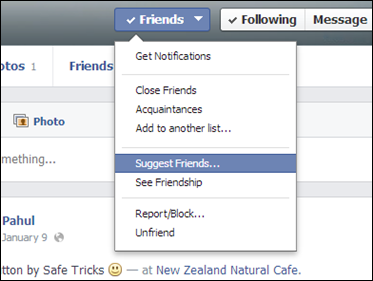
  • Then click on Friends button appear in the front of id name.
  • List of all features will appears then click on Suggest friends and new box will appear of friend list.
  • After the appearing of box click on the Icon of extension which we installed in first part.
  • Wait for few seconds then all the friends get suggested.
I hope you enjoy this tricks if you have any question feel free to ask me comments.
Continue reading